
Free HDR video tutorial

Free HDR video tutorial

MASTER EXPOSURE BLENDING

Find the best ones

Find the best ones

TOP PHOTOGRAPHY SPOTS

Free wallpapers

Free wallpapers

HIGH-RESOLUTION WALLPAPERS

For this Mondays process post, lets look at how this 7 star reflection photo was put together. As I already mentioned before (and you can see immediately from the screenshots), this reflection is of course fake. But that does not make the photo worse, just a little unreal And if you want more about how exactly I make the reflection, check out this reflection tutorial.

Now let’s look at the photo. As you can see, I not only did the reflection, but I had to correct the color and add a lot of detail and contrast.

7 star reflectionFinished photo
7 star reflectionOriginal photo

So as always, I started in Lightroom. Here I loaded all the 4 exposures form this photo, and corrected the white ballance, to get the desired color. Other than that, I only removed chromatic abberations, lens vignetting and a little noise.

7 star reflectionAll exposures
7 star reflectionLightroom tweaks

After that, I continued in Oloneo Photoengine. Loaded all the exposures, merged them, and just added strenght, detail and contrast. From there I loaded everything into Photoshp and did the following edits:

1. Oloneo Photoengine result
2. -1Ev to darken few lights on the buildings.
3. -2EV to darken few remaining higlights.
4+5. Brightened 0EV to remove a little ghosting due to a passing ship.
6. Color Efex pro contrast, to get more detail and overall contrast in the photo.
7. Merged copy of the image, moved up to allign with the center of the image.
8. Another copy, flipped for the reflection.
9. Duplicate of the flipped copy, with motion blur applied.
10. A stretched version of the water from the original photo, set to low opacity, to add little more waves to the image. I masked it out where the building were, as it looked strange.
11. Little contrast in few areas.
12. Color Efex tonal contrast, to pull out more detail from the Burj Al Arab.
13. Color Efex pro contrast once more, as I wanted to pull out more detail.
14+15. Added more contrast to the whole photo.
16. Desaturated the photo a touch, as it was too colorful.

7 star reflectionOloneo Photoengine
7 star reflectionEdit in Photoshop

And that’s all I did with this image. To find out more on how I edit, check out the guides and before after categories on this blog, or check out my video tutorial series here:
Master exposure blending

I was a little busy today, so no new photo here. But instead, how about a little teaser for an upcoming visual change of this blog? :)
Next update

Is this a Valentine themed photo? No. Do I care? No. But I do hope you all are having a nice day :)

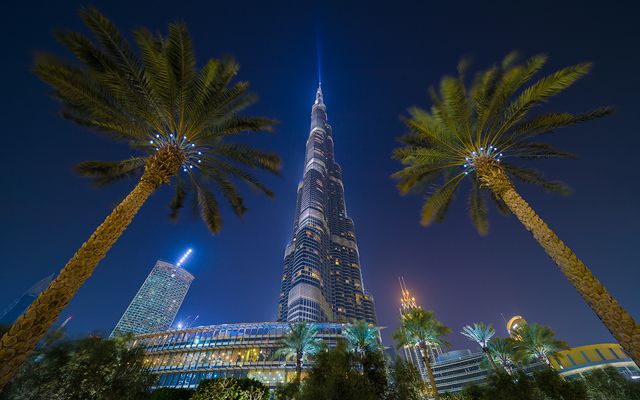
This is a HDR from 4 exposures, created in Oloneo Photoengine, finished in Photoshop. Photo taken from the top of Burj Khalifa in Dubai.

Over Dubai

Technique: Oloneo Photoengine, Number of exposures: 4, Camera Model: Canon EOS 5D Mark II, Lens: Canon 16-35mm F2.8, Focal length: 16mm, Aperture: 4.5, Middle exposure time: 2.5s, ISO: 200, Tripod used: yes, Location: 25.197332, 55.272806

I really like using Magic lantern. I makes taking HDR series so much easier. And to show you more of it, today I will go through the HDR bracketing settings that it has, and what every setting does. You will find all these settings under HDR Bracketing in the Shoot menu.

Frames

The first setting determines the number of frames Magic lantern takes. You can go from 2 up to 9 frames. There is also a Autodetect option, you may use if you want more, or are just not sure how many you need. To use Autodetect, you have to turn it on, and than take one shot. Magic lantern will look at that photo, determine how much of it is underexposed and how much is overexposed (it will show you this information as % of the total photo). Then it will taken another photo, base on the EV increment setting, and another, until it has one with the underexposed areas and one with overexposed with 0%

There are two things to take into account when using Autodetect. First is that this process is slower than just using a predefined number of exposures, as the software has to check the photo after it was taken. Secondly, Autodetect takes into account the sequence order, so it will only take additional photos in the order of the sequence.

Magic Lanters
Magic Lanters


EV increment

This is a simple one. It determines whats the to the previous photo in the series. 1EV is double the exposure. If you want to capture a bigger dynamic range, that is possible with the 9 brackets Magic lantern allows, you can simply use a bigger EV increment.

Sequence

Choosing your sequence, will determine how you set up the first shot in your series. You can start with the darkest (sequence 0 + ++), the middle exposure (0 – + — ++) or from the brightest (0 – –). Your settings will always be used as the 0 exposure in the sequence. Same for Autodetect, if you for instance use the sequence 0 + ++, it will Autodetect only towards brighter exposures, as it presumes you set up for the darkest one. I personally like the 0 + ++ sequence, and I just set up my first shot to be underexposed by 2 or 3 stops, based on how many exposures I want to take.

2-second delay

This is same as the normal 2 second delay you have in the camera. It nice to have this setting also here, very handy to turn it one when turning on HDR bracketing, if you don’t use a remote and don’t want to shake your camera.

Magic Lanters
Magic Lanters


ISO shifting

What ISO shifting does, is to change the iso instead of using a long exposures. This may help if you are taking the series handheld, as the resulting photos will be with faster exposures, but a little noisier. This is exactly the same as setting up Auto-ISO while using the in camera Auto Exposure Bracketing. You can also choose here, if you want full or half ISO shifting. This will influence how much is applied.

Post scripts

I don’t use this one at all. Post scripts determines if a script file should be created for the series, which you can use in a problam called Enfuse. This is a similar problam to Photomatix or Photoengine, with a little different results.

Magic Lanters
Magic Lanters

 
So this is all for the HDR Bracketing settings. Next time I will go over Long exposure and Intervalometer settings.

I sometimes looks at my old photos, and can’t imagine what was I thinking. Some of them look so bad. But one’s skills evolve and hopefully get better over time. And to show you how my looked like 5 years ago, here are few photo from that time, that I think I never shared here. There are of course nothing special, but they show a nice contrast to the latest ones.

Evolution
Evolution
Evolution
Evolution
FREE EBOOK!!!
Subscribe to my newsletter and get a free Capturing fireworks ebook. 
Subscribe