
Free HDR video tutorial

Free HDR video tutorial

MASTER EXPOSURE BLENDING

Find the best ones

Find the best ones

TOP PHOTOGRAPHY SPOTS

Free wallpapers

Free wallpapers

HIGH-RESOLUTION WALLPAPERS

There are many ways to add more detail to a photo. Today I’m going to show you one very popular, that can be done all just in Photoshop, without the need for any plugins at all. Of course if you have Color efex or Topaz adjust, you can use those, or any other plugin that gives similar effects. But let’s look at the Photoshop way.

This is a very easy process, so let’s get started.

1. Start by loading the photo you want to edit into Photoshop.
2. Then continue by duplicating the photo into a new layer. Just drag the background layer onto the new layer button (in the bottom right), or go under Layer/Duplicate layer. Select the new layer and change the blending mode to Vivid light.

Adding detail to a photo

 
3. Now still with the new layer selected, invert it. Either by hitting Ctrl+I or by going under Image/Adjustment/Invert. You will see a very grey image, but don’t worry :)
4. Next we need to apply Gaussian blur to this layer. So go under Filter/Blur/Gaussian blur and play with the radius, until you see the amount of detail you need. If you see too much halo around objects, try using a small smaller value. Hit OK to confirm.

Adding detail to a photo

 
5. Now we need to create a new layer, that contains all the onse we already have. Just hit Ctrl+Shift+Alt+E and it will be created for you. Select the new layer and change the blending mode to Soft light.
6. The last step we need to do, is delete the middle layer (the one set to Vivid light) as we don’t need it anymore, and it’s just in the way.

Adding detail to a photo

 
And thats all. I would suggest adding a mask onto the result, and just using it on the places you need it, not on the whole image. Feel free to ask if you have any questions to this :)

I would really like to catch a good sunset once from this place. But somehow, each time I’m there it’s only mediocre. But that only means one thing, I haver to try and try again :)

This is a HDR from 4 exposures, created in Oloneo Photoengine, finished in Photoshop.

Blue clouds over Hainburg

Technique: Oloneo Photoengine, Number of exposures: 4, Camera Model: Canon EOS 5D Mark II, Lens: Canon 16-35mm F2.8, Focal length: 16mm, Aperture: 5, Middle exposure time: 20s, ISO: 200, Tripod used: yes, Location: 48.153407, 16.952711

As it is snowing like crazy in Bratislava today, I decided to show you how I edited one of my recent snowy photos :) So let’s take a look at it.

Hviezdoslav in the snowFinished photo
Hviezdoslav in the snowOriginal exposure

As you can see from the original photo, I had a lot to correct. I started with Lightroom, where I changed the white balance, opened the shadows, brightened the whites, added a lot of contrast and clarity to recover detail. From there I exported the image in Photoshop and did the following edits (layers numbered from bottom up):
1. Lightrom edit
2. Removed noise as I didn’t wanted to make it more visible in further edits
3. Color effex tonal contrast to get more detail, but brushed it out on the statue as that made it too dark.
4. Retouched out one huge snowflake in the left area of the photo, it just bothered me there :)
5. Color effex detail extractor, to get more detail and texture in the statue.
6. Stronger noise reduction on the statue.
7. Levels to get more pure white areas in the photo.
8. Color effex tonal contrast once more on the sky, to make the snowflakes even more visible
9. Added more overall contrast.
10. Desaturated the banners in the background.
11. Added more saturation to the text, to make it more dominant.

Hviezdoslav in the snowLightroom tweaks
Hviezdoslav in the snowPhotoshop edit

And that’s all I did with this image. To find out more on how I edit, check out the guides and before after categories on this blog, or check out my video tutorial series here:
banner-master

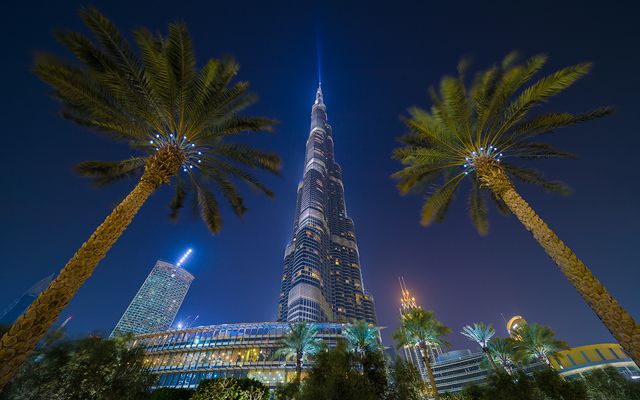
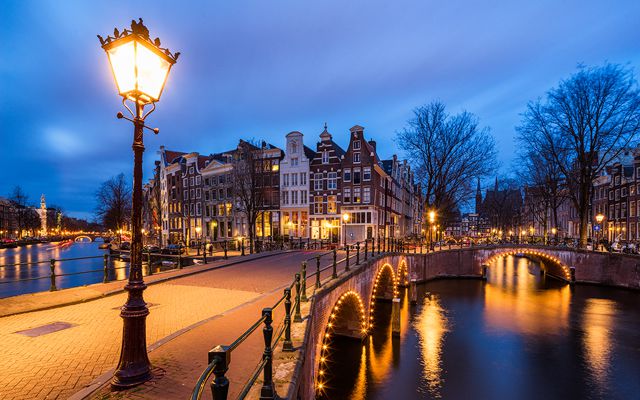
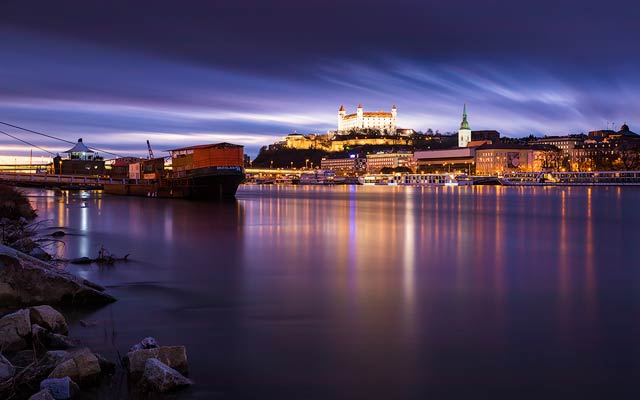
For today, I have for you two new huge 21:9 wallpapers. This time it’s one from Bratislava and one from Dubai. You can get them as always from the wallpapers page.

Blue hour panorama
Alpine peaks

How about a new photo from Abu Dhabi today. Ok, not new, since I took it almost a year ago. But it’s new as I haven’t published it yet :)

This is a single exposure blended a little with HDR created from 2 exposures in Oloneo Photoengine.

Shining white

Technique: Oloneo Photoengine, Number of exposures: 2, Camera Model: Canon EOS 5D Mark II, Lens: Canon 16-35mm F2.8, Focal length: 16mm, Aperture: 8, Middle exposure time: 1/6s, ISO: 100, Tripod used: yes, Location: 24.412637, 54.476093
FREE EBOOK!!!
Subscribe to my newsletter and get a free Capturing fireworks ebook. 
Subscribe