
Free HDR video tutorial

Free HDR video tutorial

MASTER EXPOSURE BLENDING

Find the best ones

Find the best ones

TOP PHOTOGRAPHY SPOTS

Free wallpapers

Free wallpapers

HIGH-RESOLUTION WALLPAPERS

From time to time one needs to process a bigger number of photos with the exact same settings. I may be a huge panorama, HDR time-lapse, or something different. In those cases, the batch processing in Photoengine can come really handy. And today I will show you how to use it.

So first thing first, you need to have all the photos you want to process ready. That means that if you have them in Lightroom, first correct any camera problems (distortions, chromatic abberations, vignetting and similar), and then export them either as tiff or jpg files depending on the quality you require. You should export everything in a single folder, with nothing else in it.

Once this is done, you can continue in Photoengine. But before choosing batch, you need to create a preset, so the program knows which adjustments to apply to the photos. For this just choose any of the series, add them to the project and click on Create tonemapped HDR project.

Batch process in Photoengine

Now tweak the settings until you like the result. These are the settings that we will be applying to all the photos. Once satisfied, choose Add under presets. In the new window, name you preset whatever you want. Here I chosen the name Panorama, as that’s what I’m processing here. Save the preset by clicking OK.

Batch process in Photoengine

 
Now you need to close this project, so choose File/Close. You don’t need to save the result, as we already have what we need, the preset.

To batch all the files, now choose File/Batch. In the window that opens, you have to select a few things:

  1. the source directory – where Photoengine will look for the files
  2. destination directory – where you want to save the results (is the same as source by default)
  3. file format and quality – how the result will be saved, either jpg or tiff
  4. number of exposures – how many exposures will be processed at once. In my case, it’s 5. Note that all have to have the same number of exposures, or the batch will not produce correct results
  5. auto align – if PhotoEngine should try to auto align the brackets, only if you took them handheld
  6. use preset – check this option, and then choose the saved preset from the list on the right

And thats all. once you confirm with OK, Photoengine will go through all the files in the folder and merge them all into tonemapped HDR files with your settings applied.

Batch process in Photoengine

 
For panoramas I like to use the other method mostly. That is to first create the panoramas from brackets, and then merge them in PhotoEngine. But there are situations, like for instance a 360 degree panorama, where this approach, by batching all the exposures first, is much better, as Photoengine does not support 360 images, and will crate an ugly break in them.

Feel free to ask any questions if something is not explayned properly.

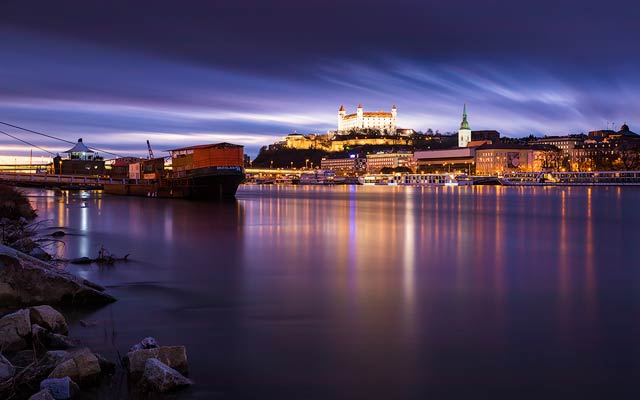
There still is snow in Bratislava so I thought I should go out and take some new photos. But then I woke up with a nasty cold today, so instead, I’m siting at home, trying to get better quickly. But instead of a new photo, here is one taken a year ago.

This is a HDR from 5 exposures, created in Oloneo Photoengine, finished in Photoshop.

Winter castle

Technique: Oloneo Photoengine, Number of exposures: 5, Camera Model: Canon EOS 5D Mark II, Lens: Canon 16-35mm F2.8 IS II, Focal length: 64mm, Aperture: 7.1, Middle exposure time: 10s, ISO: 100, Tripod used: yes, Location: 48.137012,17.108021

How the time passes. It really has been a long time since I shared some RAW brackets with you and so I’m doing that today. So here is one of my photos from last year, and here from Dropbox you can download all the RAW files I used.
Waves in Lucerne
 
And to make it easier for you, this is one of the photos I shown in the process posts, so you can find here, how I edited it :)
Waves all
 
If any of you create your own version, feel free to share it in the community hub (the spot in the bottom left of the page :)). If you share it anywhere else, please note that I still own the copyright of this photo and mention me as the author and link back to this blog. Thank you.

It’s been long time since I posted a photo of the Apollo bridge, so I’m posting one today. Maybe it’s time to get some more photos of it again, try a some new composition :)

This is a HDR from 5 exposures, created in Oloneo Photoengine, finished in Photoshop.

At Danube

Technique: Oloneo Photoengine, Number of exposures: 5, Camera Model: Canon EOS 5D Mark II, Lens: Canon 16-35mm F2.8 IS II, Focal length: 16mm, Aperture: 5.6, Middle exposure time: 12s, ISO: 100, Tripod used: yes, Location: 48.135814, 17.128297

Another Monday, another process post for you. Today I will show you how this star trails photo was edited. So let’s get started.

City skyFinished photo
City skyOne from the original exposures

Of course here I used a lot of photos. 80 in total here. All with same settings and all loaded in Lightroom to start with. There I did few tweaks, mostly white balance correction, removed noise and chromatic aberrations, and exported everything into Photoshop. Normally for star trails, is enough to set every layer (except the background one) to the lighten blend mode and thats it. But since there were few clouds in the sky, that crossed in front of the camera while I was taking the photos, I first masked them out on every photo that they were visible. Luckily, it affected only about 15 photos, so it was not so much work :)

City skyLightroom edit
City skyAll exposures

Then I merged all the images, as Photoshop worked very slowly with so many layers opened. After that I continued with the following edits (layers numbered from bottom up):
1. the merged copy with the star trails
2. one of the original exposures, to mask in the trees, as they were too bright after the star trail merging. Also they were moving between the exposures and I wanted to remove ghosting.
3. adjustment to the layer beneath, to add contrast and brightness
4. added saturation to the photo
5. retouched out few branches that didn’t fit
6. sharpened the star trails using the High-pass filter method
7. added overall contrast

After that I cropped the photo, to have it more focused on the sky.
City sky
And that’s all I did with this image. To find out more on how I edit, check out the guides and before after categories on this blog, or check out my video tutorial series here:
banner-master

FREE EBOOK!!!
Subscribe to my newsletter and get a free Capturing fireworks ebook. 
Subscribe