
Free HDR video tutorial

Free HDR video tutorial

MASTER EXPOSURE BLENDING

Find the best ones

Find the best ones

TOP PHOTOGRAPHY SPOTS

Free wallpapers

Free wallpapers

HIGH-RESOLUTION WALLPAPERS

Oloneo Photoengine

I use multiple approaches and programs for my HDR processing and blending. One of my favorites is also the Oloneo Photoengine. As all HDR programs go, the results vary from photo to photo, but there are some points that make this one of the best programs to blend you photos. Except the last part, this review is also about HDRengine, which is a part of Photoengine.

Speed

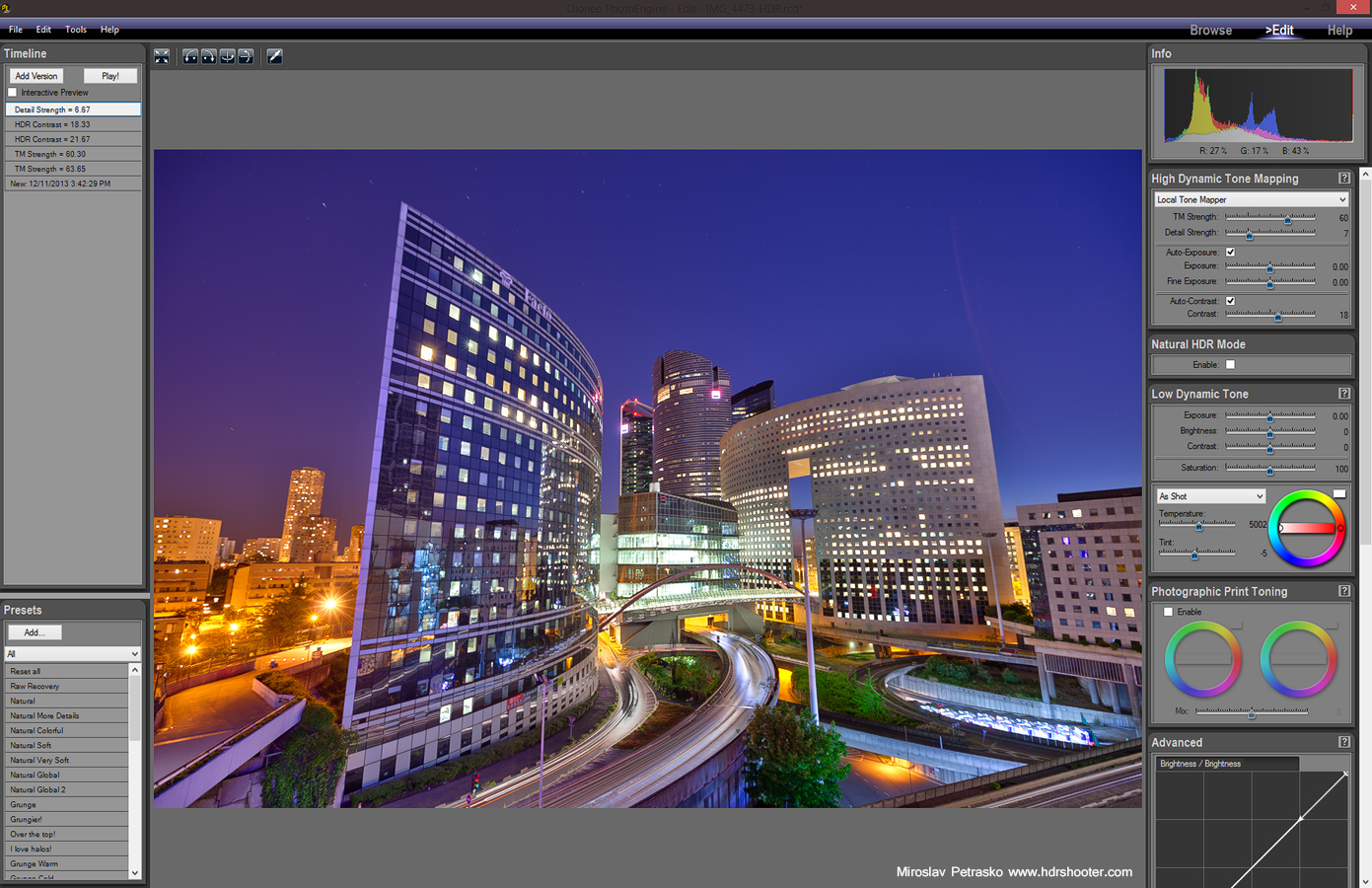
This is the fastest blending program I ever used. You can see all the changes you do on the photo in real time, and once they are done, you can directly save the photo, without any additional time needed for processing.
Oloneo Photoengine

Sharpness of result

A lot of HDR programs can remove a lot of sharpness from the photo. In my experience Photoengine leaves most of the sharpness in tact. The only way I can get more, is if I blend the photos manually in Photoshop.
Oloneo Photoengine

Easy to use

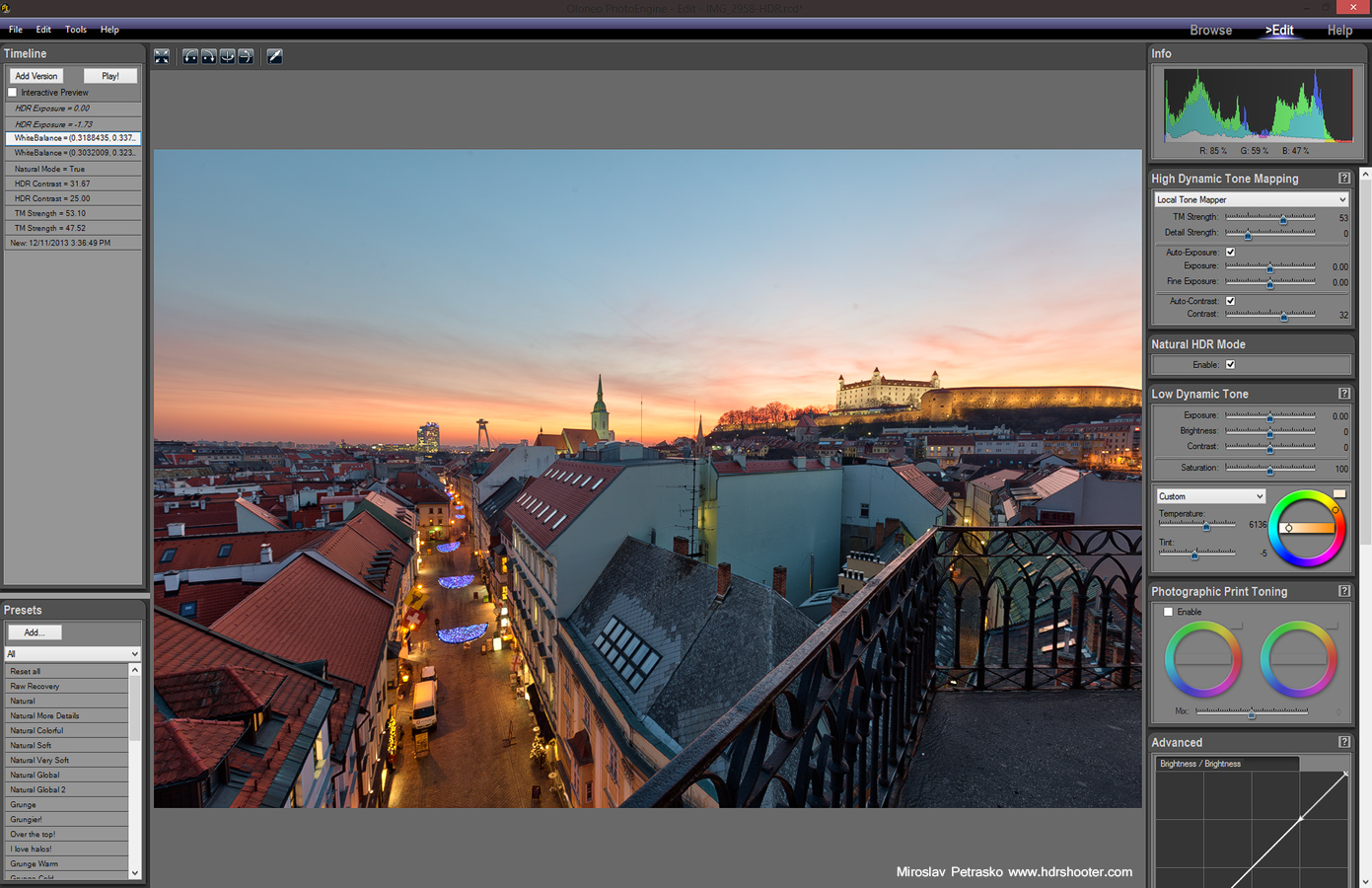
This is my favorite thing about Photoengine. As I don’t really use presets that much, I really like that I’m able to get my result by using only one slider. Just by using the TM Strength I can get the result I need maybe 90% of the time. The rest of the time I only add more contrast and maybe change the white balance.
Oloneo Photoengine

Single Image processing

Oloneo Photoengine doesn’t care if you put in one photo or multiple, it will treat them all the same, and you can use all the tools in both situations.

Other HDR editing features

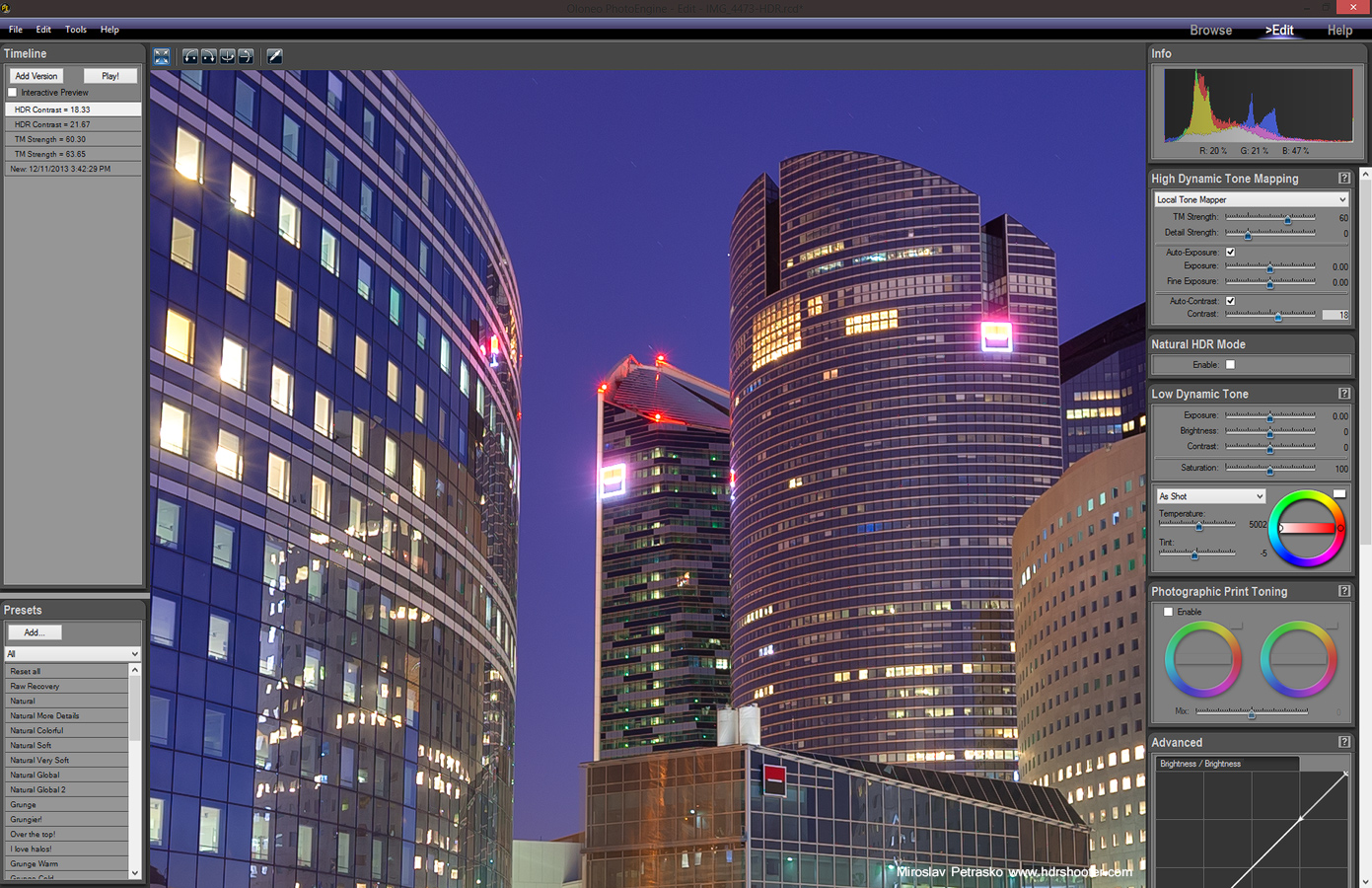
Among other notable features, is the Natural HDR mode, which will make your photo more realistic (especially it will remove over-saturated colors), Detail strength, which will add a lot of detail, and I think should be used very lightly and complete set of tools needed to correct the colors or colorize your photo. All this tools are great if you don’t plan to continue your edit in Photoshop, but I don’t use them that often.
Oloneo Photoengine

Photoengine vs. HDRengine

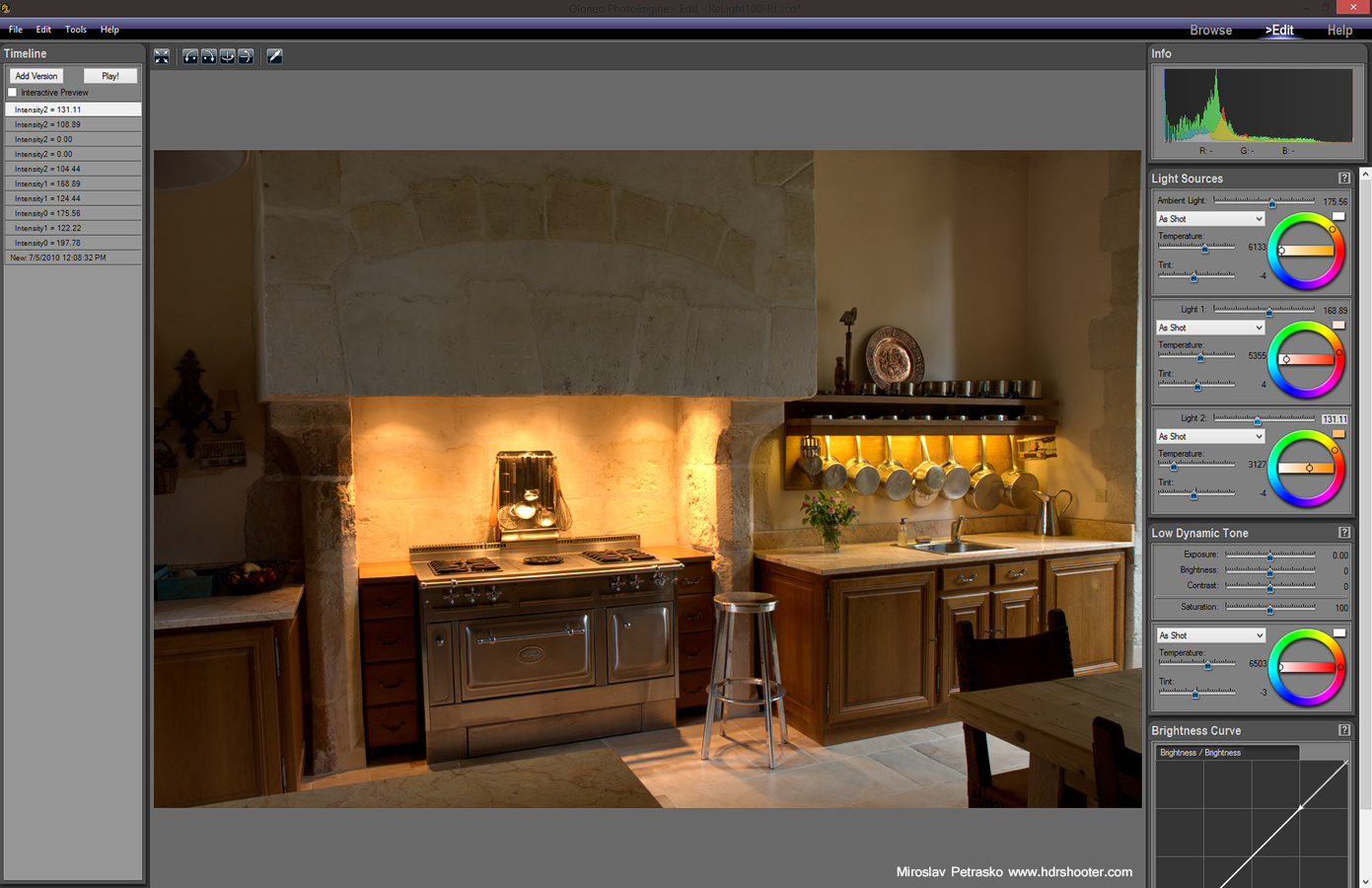
There is a second program from Oloneo, called HDRengine. All I mentioned until now is the same also for HDRengine, as that includes the same HDR editing parts. The difference between these two is, that Photoengine also includes two additions parts. They are HDR Relight, where you can combine photos of the same scene, with different light sources turned on. You can then control each light individually to create a final photo. The second addition is HDR DeNoise where Photoengine uses multiple photos of the same scene, taken with the same settings, to remove noise. This is different than normal noise reduction, and the results loose no detail in the process.
Oloneo Photoengine

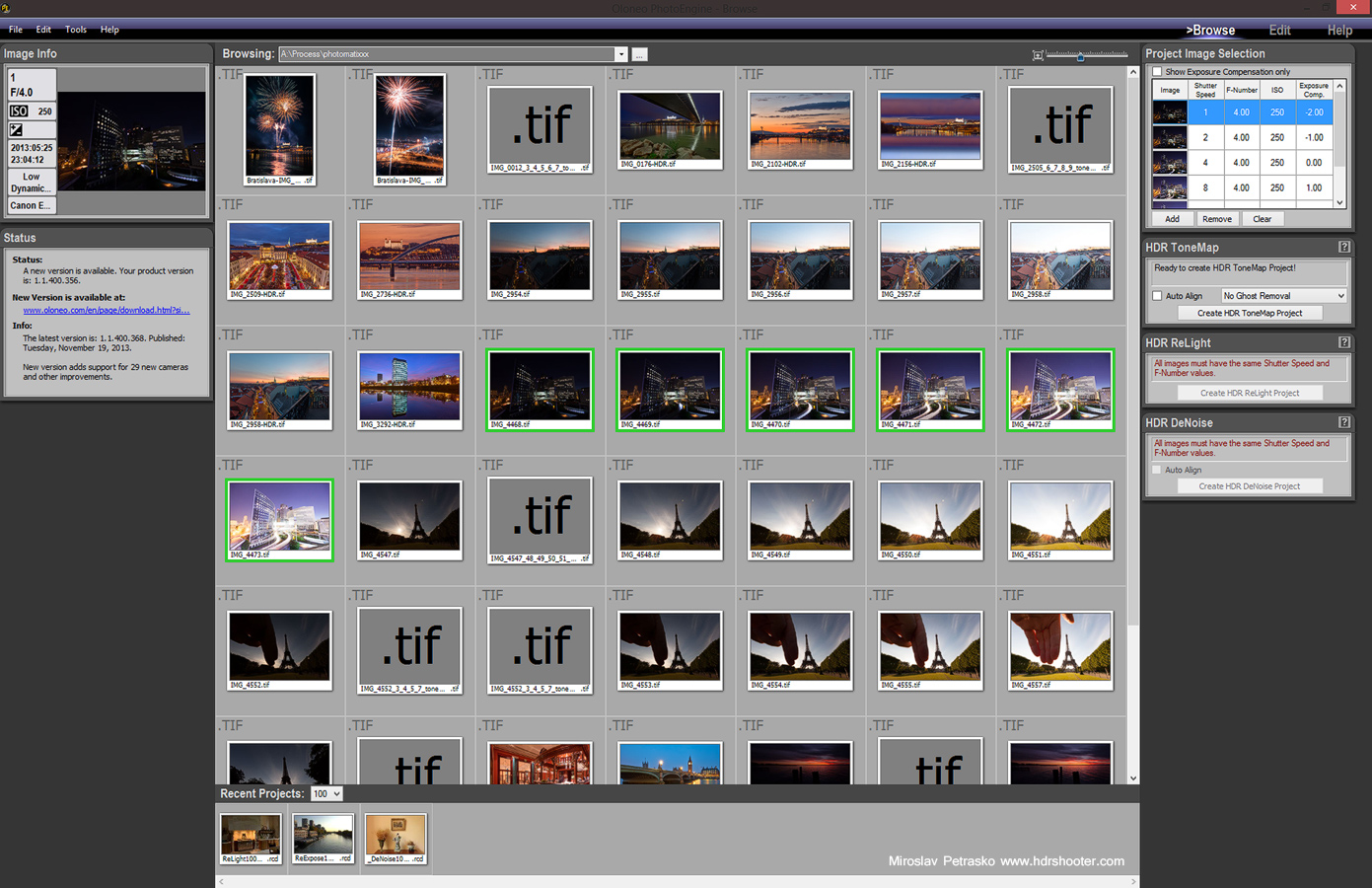
There are few things I don’t like about Photoengine. I don’t like the way the file browser works, where you have to browse for the folders, instead just going up and down in the tree structure. Also if they included the double click on the setting name to reset it, would make the work much faster. Additionally in the blending, with some photos the algorithm can create halos or a bright stroke around the dark areas. As I said, it’s not perfect for all the photos, but no program is.

Overall I highly suggest you give this program a try. It’s one of the simplest ways to start with HDR and also creates one of the most natural feeling results from them all.

For more information about Oloneo Photoengine and HDRengine, please visit the Oloneo site.

View all my other reviews here.

And here are few photos where I used Oloneo Photoengine for the initial HDR blending.
Above Paris
Something green
The setting sun in Bratislava

contest-side

Last day to join the contest

Tomorrow is the last day you can join my photography contest sponsored by OLONEO. After that the voting will start. The raffle will continue for one more week, so don’t forget to join. To find all the info about the contest, please go here: https://www.hdrshooter.com/2013/11/18/photo-contest-sponsored-by-oloneo/

10 basic Photoshop shortcuts to make your work easier

While editing photos, I use Photoshop all the time. And making it easier and faster, one has to use as many shortcuts and possible. So I thought that some of you, who are just beginners, would find useful a short list of 10 shortcuts, I think one should know and use in Photoshop. There are of course many more, but these are the ones I think everyone should start with.

  1. Space – pan image. This is the one you should get used to first. When you hold the space bar, your cursor changes into a hand and you can move around the photo. This make all edits so much faster than hawing to use the tool or scroll bars.
  2. Ctrl + Space – zoom in/zoom out. This is another one that makes all your work so much faster. Instead of having to choose the zoom tool, just use this shortcuts instead. While holding these two buttons, press your left mouse button and drag up/down to zoom in/out. This is the fastest way to zoom around the photo.
  3. F – full screen. Make you work easier, and hide all you don’t need. It cycles through three modes, so choose the one you like the most
  4. D – reset colors. This resets the foreground color to black and background to white. This is very useful when you work with masks, and you need to quickly reset you chosen colors.
  5. X – switch colors. Switches the foreground and background color selection. Great for when you are painting a mask, and you need to switch a lot between white and black.
  6. Ctrl – move. Move tool is very important in Photoshop. And so you don’t have to always select it, there is a quick access to it. In almost all other tools, when you hold down Ctrl, you will be temporarily switched to Move. When you release the key, you will continue with the tool you had.
  7. Ctrl + Shift + V – paste in place. Everybody knows what Ctrl + V does, and this is and advanced version of that. It will paste your selection on the same place from where you took it. For instance if you copy your watermark from one file to another, it will appear on the same place as it was.
  8. Ctrl + Alt + Shift + E – merge visible. While you are editing your files, quite a lot of steps need to be performed on a merged copy of all the layers (like high pass sharpening). This shortcut makes creating such a new layer much faster, even if you have to press 4 keys at once
  9. Ctrl + Alt + Z – step backward. Ctrl – Z is the usual keyboard shortcut for step back, but if you want to go more than one step back in Photoshop, you have to use this one
  10. Shift + Backspace – fill. Always when you need to fill a layer, or a mask with black, white, 50% grey, or you need to use content aware fill on the selected area, just press this and select what fill you need.

A cold evenings light

The weather looked so promising today, so I went out shooting with Pedro Kin from www.pedrokin.com. And we got a nice sunset, with interesting clouds, just the color wasn’t there. I just could not get the look I hoped fore, even after quite a long edit. So I have to be satisfied with the photo how it is. It has to be better next time :)
A cold evenings light

noiseware-banner

Imagenomic Black Friday sale

I found another great Black Friday deal for you. Imagenomic is runing a 30% discount on all their products. I personally love their Noiseware pro plugin, as it the best noise reduction plugin I have tried. I’ve been using it for quite a long time now. For further details head over to the Noiseware page on the Imagenomic site, just if you like it, don’t forget to use the code “THANKU2013” for the 30% discount. This offer is valid until tomorrow. And while you there, don’t forget to check out also their other plugins.

Purple sky around the Lighthouse

I just could not decide what to edit for today. I started to edit 6 different photos, but I didn’t like anything I created. In the end I went with a sure thing. All my photos from this lighthouse look so great, so editing any of them will create something I like. So here it is, a lovely sunset shots from the Neusidler see.

This is a manual blend from 5 shots.
Purple sky around the Lighthouse

topaz

Cyber Monday and Black Friday sales

Black Friday and Cyber Monday are just few days away, and as it is the best time to buy new software, I thought I share with you some interesting deals I came across. So here is the first one. For the next few days Topaz Labs has discounted the whole Topaz plugins Collection almost by 50%. It’s really worth checking out. The amount of all the available effects here is just stunning. You can find them all on the Topaz Labs site.

5000 likes

My fan page on Facebook just reached 5000 likes. Thank you very much everyone who follows me there and I hope that over time there will be many more of you :)
facebooklikes

Color therapy

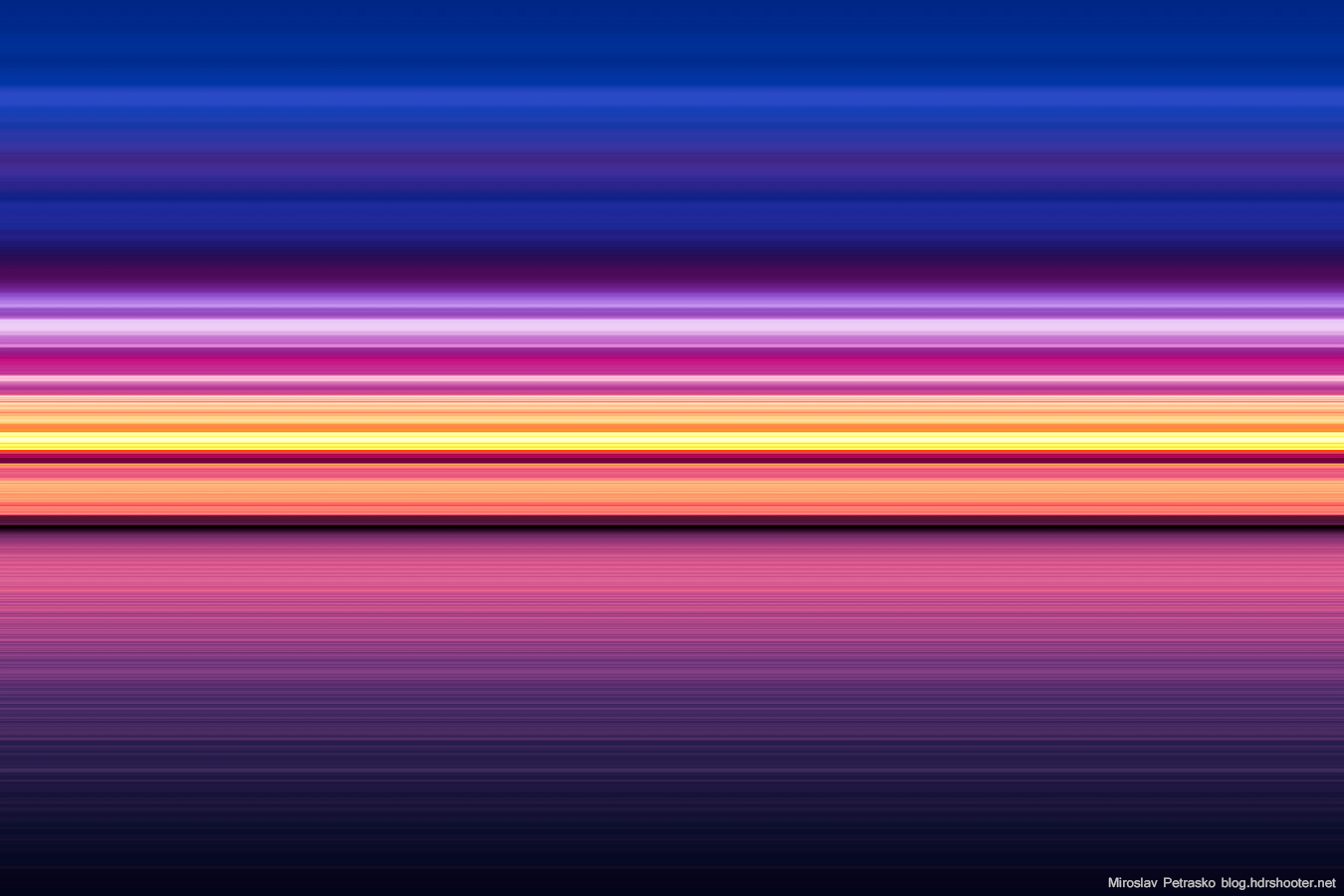
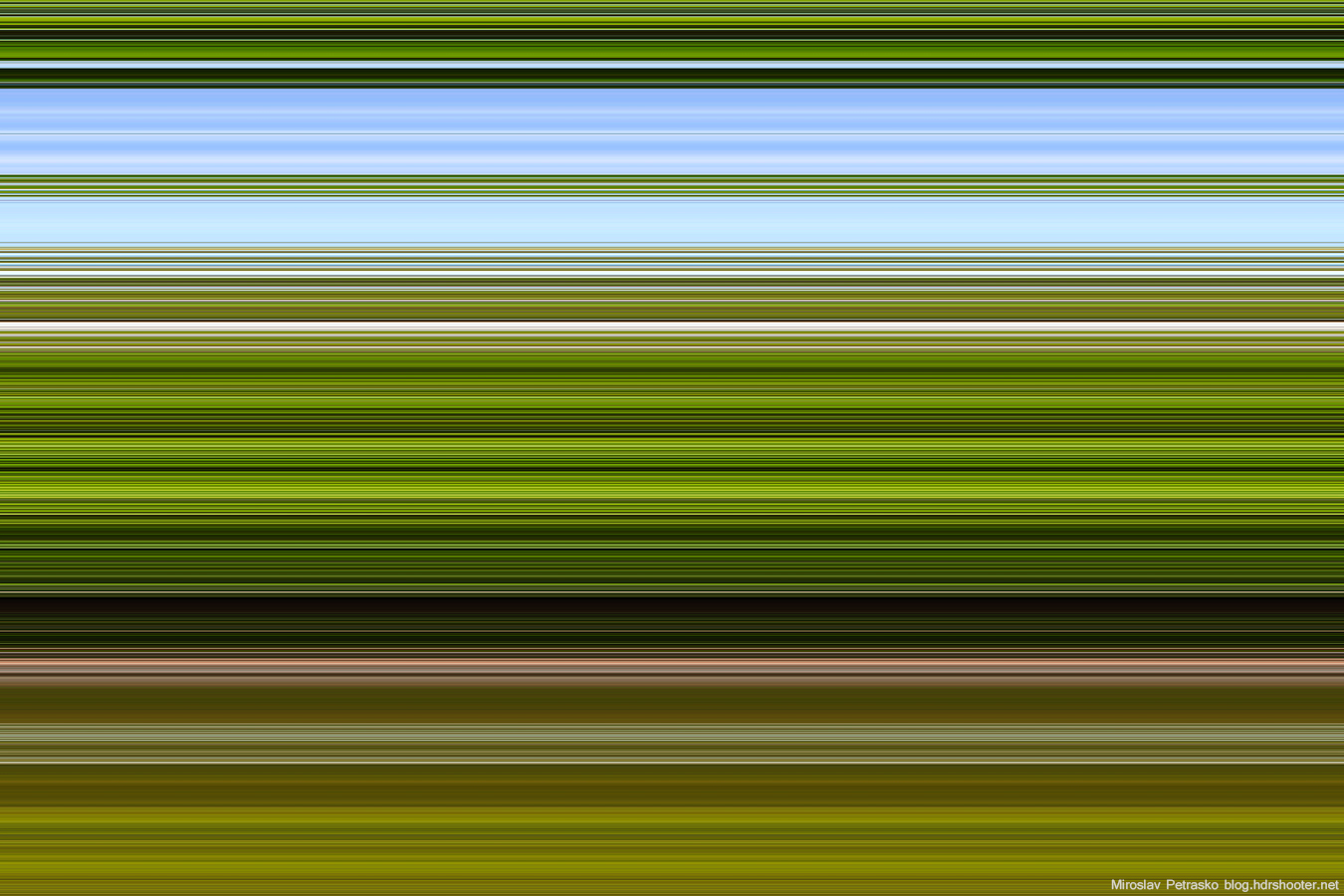
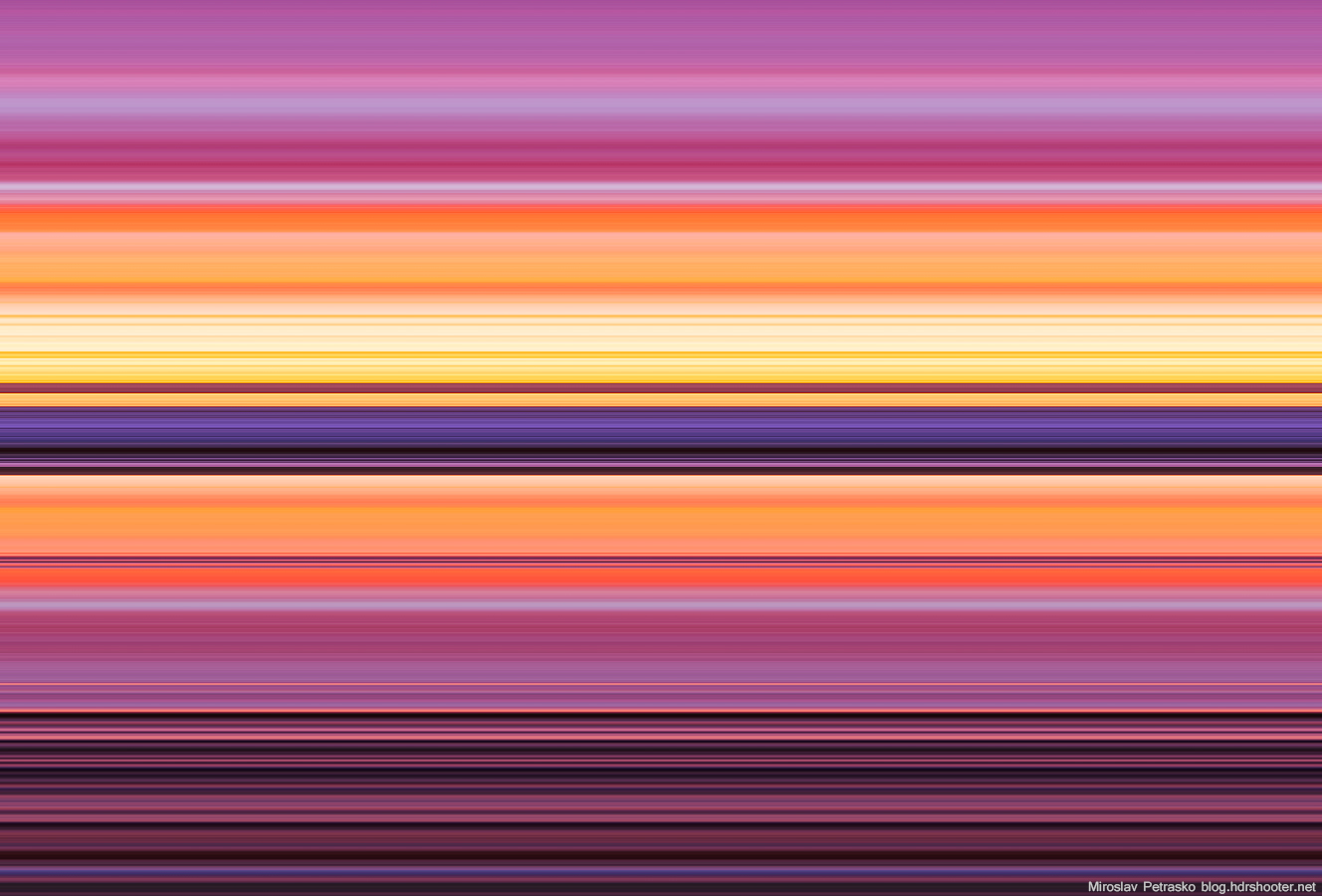
Some time ago I was thinking, how would my photos looks without structure. I mean, when you do a B&W photo, you keep the structure, but remove the colors. So what if I removed the structure and kept the colors. I just wondered what I would get. And with a little playing around in Photoshop, I got this little series of very colorful minimalist images. It’s funny that even without any subject in them, I still get a similar feeling from them, as I did from the photos they were created from. The sunset, sky, grass colors are so unmistakable, that even on their own you feel like you see the objects :)

Podersdorf-IMG_9914-blur
Podersdorf-IMG_0012-blur
Budapest-IMG_8176-blur
Podersdorf-IMG_9956-blur

What do you think?

Cold evening by Danube

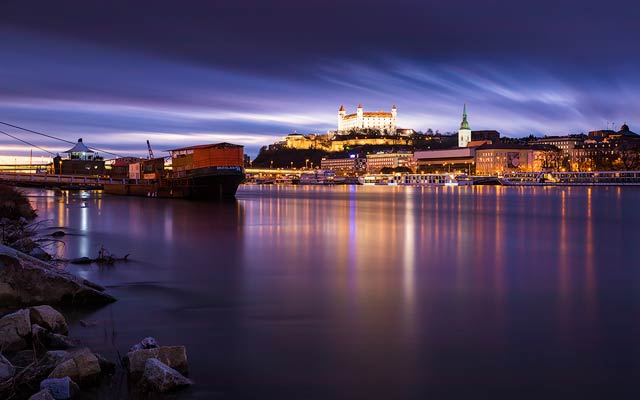
For today I chosen for you a photo I took two weeks ago by the SNP bridge in Bratislava. The water level at this time of the year is quite low, which really allows one to get down under the bridge, so getting also all these rocks into the shot. The light was not that great, but that is normal for this time of year. Hopefully it gets a little better, as I would so like to go out and get some new photos.

This is a HDR created in Oloneo Photoengine and then blended with original exposures in Photoshop.
Cold evening by Danube

New newsletter

From today you can sign up for my Newsletter. I’m still in the process of creating everything for it, but I will be sending the first one very soon. I plan to send one to four every month, never more than once a week (all depending on how much new stuff I have to share with you :)).

The newsletter will include a selection from updates from the blog, whats new here and a access for all my new guides before I post them to the blog. And don’t worry, I won’t spam you :)

So for those who would like to keep in touch with my blog, feel free to sign here:


[mc4wp_form]


Blue water in Dresden

I’m finally getting back to HDR after the last few days filled with editing party photos. It’s fun, but so much work. I’m so thankful for the sync function in Lightroom :) But here I have for you a photo from Dresden.

I created it by using manual blending. I had 5 exposures, but even on the +2EV the area under the bridge was black. I tried to brighten it up, but even in the RAW file the area was still dark. Strange how it got no light reflected from the water. Nest time here, I’m doing a +4EV bracket :)
Blue water in Dresden

FREE EBOOK!!!
Subscribe to my newsletter and get a free Capturing fireworks ebook. 
Subscribe